| Garantie LCD/Backlight (Jahre): | 3/3 incl. Vor-Ort-Austauschservice |
| max. Pixelfehler (nach ISO 13406-2): | Klasse II |
| Panelgröße: | 20,1″ |
| Pixelgröße [mm]: | 0.258 |
| Standardauflösung: | 1.680 x 1.050 |
| Sichtbare Bildgröße/-diagonale [mm]: | 433,4 x 270,9 / 511 |
| Videoeingang, Stecker: | Sub-D analog, DVI-D digital, S-Video, Composite-Video |
| Bildfrequenz [Hz]: | 56 – 76 |
| max. Zeilenfrequenz / Videobandbreite [kHz/MHz]: | 30 – 81 (analog & digital) / – |
| Farbmodi Preset/User: | 3 / 1 PC-Mode, 3 / 1 Mac-Mode und 0 / 1 Video / PbPr Mode |
| LCD drehbar/Portrait Modus: | Ja / Ja |
| LCD Display Arm Option: | Ja |
| Ausstattung: | Sub-D Kabel, DVI-D Kabel, USB-Kabel, 4fach-USB-Hub, Netzteil intern, Netzkabel |
| Monitormaße (B x H x T) [mm]: | 472,7 x 334,0 – 435,0 x 177,7 (Panel im Querformat) |
| Gewicht [kg]: | 6,5 |
| Prüfzeichen: | TCO99, FC, CE, GS, CS, cUL, PCT VCI, Energie Star |
| Leistungsaufnahme On/Stand-by/Off [Watt]: | 44,6 / 1,0 / 0,9 |
Einleitung
Mit dem 2007WFP stellt Dell den Nachfolger des 20,1 Zoll Widescreen Monitors 2005FPW vor. Der Dell 2005FPW bietet eine ausgezeichnete Ausstattung, insbesondere bei der Anschlussvielfalt, hat ein durchdachtes Bedienungskonzept und auch bei der Verarbeitungsqualität konnte das Display überzeugen. In diesem Test wollen wir klären, ob der 2007WFP an die Qualität und Leistungen des Vorgängers anknüpfen kann oder diese sogar übertrifft.
Alle in diesem Test veröffentlichten Ergebnisse wurden am digitalen Eingang ermittelt. Lediglich die analoge Bildqualität wurde am analogen Anschluss getestet. Alle Tests wurden an einer Gainward PowerPack! Ultra/2600 Golden Sample Grafikkarte und zwei Point of View GeForce 7800GTX 512MB (SLI) Grafikkarten durchgeführt.
Lieferumfang
Zum Lieferumfang des Dell 2007WFP gehören folgende Teile: Ein zweiseitiges Blatt mit Informationen zum Aufstellen, Anschließen und Bedienen des Monitors, ein Handbuch mit weiteren Installations- und Garantiehinweisen, eine CD, ein DVI-D Kabel (digital), ein D-Sub Kabel (analog), ein USB-Kabel und ein Netzkabel. Auf der CD sind ein ausführliches Handbuch im HTML-Format und die Windows Monitortreiber enthalten. Die gesamte Dokumentation liegt mehrsprachig vor. Ein ausführliches Handbuch in gedruckter Form ist nicht vorhanden, was heute leider die übliche Praxis der Displayhersteller darstellt. Insgesamt kann der Lieferumfang des Dell 2007WFP als komplett bezeichnet werden.

Optik und Mechanik
Das Design des Dell 2007WFP ist ansprechend und wirkt ausgesprochen edel. Farblich ist der Monitor in schwarz und silbern gehalten. Das Panel wird von einem schwarzen 1,8 cm breiten Rahmen umfasst. An der Ober- und Unterkante des Gehäuses ist jeweils ein silberner Streifen zu erkennen, diese Streifen sind Teile der rückseitigen silbernen Gehäuseschale.


Der Monitor ist um 45° nach links und rechts schwenkbar. Die Neigung des Panelehäuses lässt sich von 4° nach vorne bis 21° nach hinten einstellen.

Beim Drehen des Monitors behält der Fuß seine Position auf dem Tisch bei.


Das Display verfügt auch über eine Höhenverstellung um 10 cm. In der niedrigsten Einstellung beträgt der Abstand von der Gehäuseunterkante bis zur Tischoberfläche 2,5 cm.


In der niedrigsten Position besitzt der 2007WFP eine Arretierung, in die der Monitor automatisch einrastet. Um diese zu lösen, muss ein Knopf auf der Rückseite des Standfußes gedrückt werden.

Der Standfuß des Dell 2007WFP ist mit einer Pivotfunktion ausgestattet. Das Panelgehäuse kann damit in die Portraitstellung gedreht werden. In der Landscape- und Portraitstellung verfügt der Monitor über einen Einrastpunkt, der das Panel in der jeweiligen Stellung praktisch ohne Spiel waagerecht ausrichtet.

Die Mechanik des Monitors funktioniert einwandfrei. Die Dreh- und Neigefunktion, sowie die Höhenverstellung sind leichtgängig verstellbar.
Bei der Pivotfunktion ist deutlich mehr Krafteinsatz nötig, da zuerst der Widerstand des Einrastpunktes überwunden werden muss.


Der Dell 2007WFP verfügt auch über eine VESA100-Verschraubung. Um allerdings an diese zu gelangen, muss zuerst der Standfuß vom Monitor demontiert werden. Hierfür sollte das Display vorsichtig mit der Panelseite auf einen Tisch gelegt werden.

Der Standfuß kann nun ganz leicht vom Gehäuse getrennt werden, dazu muss man lediglich den Knopf hinten am Gehäuse drücken. Anschließend lässt sich das Gehäuse aus der Sicherung lösen und der Standfuß kann ganz einfach abgehoben werden.

Ist der Standfuß erst einmal abgenommen, lässt sich jede Art von Halterung, die dem VESA100-Standard entspricht, am Panelgehäuse befestigen.
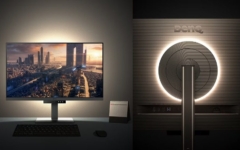


Der Standfuß besteht zum größten Teil aus Aluminium und ist sehr gut verarbeitet. Alle Kanten sind sauber gebrochen, es gibt keine scharfkantigen Stellen. Der gesamte Standfuß vermittelt einen sehr hochwertigen Eindruck.


Der große Standfuß bietet dem Monitor eine sehr gute Standsicherheit. Somit ist ein Kippen des Displays praktisch ausgeschlossen.
Der Fuß des Dell 2007WFP verfügt über eine einfache aber praktische Kabelführung. Im unteren Teil des Arms befindet sich eine rechteckige Aussparung, durch die die Kabel problemlos geführt werden können.

Die Verarbeitungsqualität des Testgerätes ist sehr gut. Alle Gehäuseteile sind passgenau gearbeitet. Ein Knarren oder Knacken konnten wir während des Testzeitraums nicht feststellen.
Die Power-LED und die Statusanzeige der Signaleingänge leuchten im Betrieb dezent grün, geht der Monitor in den Stand-by-Mode, so ändert sich die Farbe und diese leuchten dezent orange. Damit stören die Statusanzeigen auch bei dunkler Umgebung nicht.


Der Dell 2007WFP arbeitet praktisch geräuschlos. Im Betrieb ist nur dann ein Brummen wahrnehmbar, wenn ein Ohr an die Gehäuserückseite angelegt wird. Die Lautstärke des Brummens ist nicht von der gewählten Helligkeitseinstellung abhängig.
Das integrierte Netzteil des Monitors verfügt über keinen Netzschalter. Um das Gerät vollständig vom Stromnetz zu trennen, muss das Netzkabel gezogen werden.
Die Leistungsaufnahme des 2007WFP liegt laut Dell maximal bei 55 Watt. Dieser Wert gilt ohne die optional erhältliche Soundbar. Im Stand-by-Mode sind es laut Hersteller unter 2 Watt. Bei ausgeschaltetem Gerät soll der Verbrauch unter 1 Watt liegen. Wir haben mit einem Energieverbrauchsmessgerät die angegebenen Werte überprüft.
Stromverbrauch
| Hersteller | Gemessen | |
| Betrieb maximal | 55 W | 44,6 W |
| Stand-by Mode | < 2 W | 1,0 W |
| Ausgeschaltet | < 1 W | 0,9 W |
Der Dell 2007WFP bietet eine komplette Ausstattung, zeigt eine sehr gute Verarbeitungsqualität und das Ganze ist verpackt in einem ansprechenden Gehäusedesign.
Anschlüsse
In einer Aussparung auf der Gehäuserückseite, sind die Anschlüsse des Dell 2007WFP gut erreichbar angeordnet. Das Display verfügt über folgende Anschlüsse: DVI-D (digital), D-Sub (analog), 4-fach USB 2.0 Hub, Composite-Video und S-Video. Der Composite-Video und S-Video Eingang stellen eine Besonderheit dar, denn nur wenige Displays verfügen über Videoanschlüsse. Der 2007WFP bietet damit die gleiche Anschlussvielfalt wie der Vorgänger 2005FPW.

Auf der Gehäuserückseite, zwischen dem USB-Hub und dem DVI-D Eingang, befindet sich der Stromanschluss für die optional erhältliche Soundbar.
Zwei der insgesamt vier USB-Anschlüsse sind seitlich am Gehäuse platziert. Damit sind diese zwar sehr gut erreichbar, die eingesetzen Kabel oder Geräte stehen aber deutlich vom Rahmen ab. Besonders wenn man das Display in die Portraitstellung dreht, sollte darauf geachtet werden, dass an den seitlichen USB-Anschlüssen keine Geräte mehr angesteckt sind. Es könnte sonst beim Drehen zu Beschädigungen kommen. Für USB Tastaturen oder Mäuse empfehlen wir die zwei USB-Anschlüsse auf der Gehäuserückseite zu verwenden.